


Spindog on Mobile: How to Play Casino and Sports on Your Phone starts with opening our mobile page in the browser on your phone or tablet.
Below you can read how to create a shortcut, use your account and deal with common connection problems. We do not have confirmed information about a separate app or specific features.
| Feature | Spindog on mobile |
|---|---|
| Operating systems | iOS and Android |
| Recommended browser | Safari on iPhone, Chrome on Android |
| Installation | None, play directly in the browser |
| Quick access | Icon on your home screen |
| Games | Slots, jackpots and crash games |
| Live dealers | All tables available |
| Sports | Bet through the same account |
| Payments | Card, e-wallet and crypto |
| Verification | Upload documents with your camera |
Mobile play at Spindog in brief
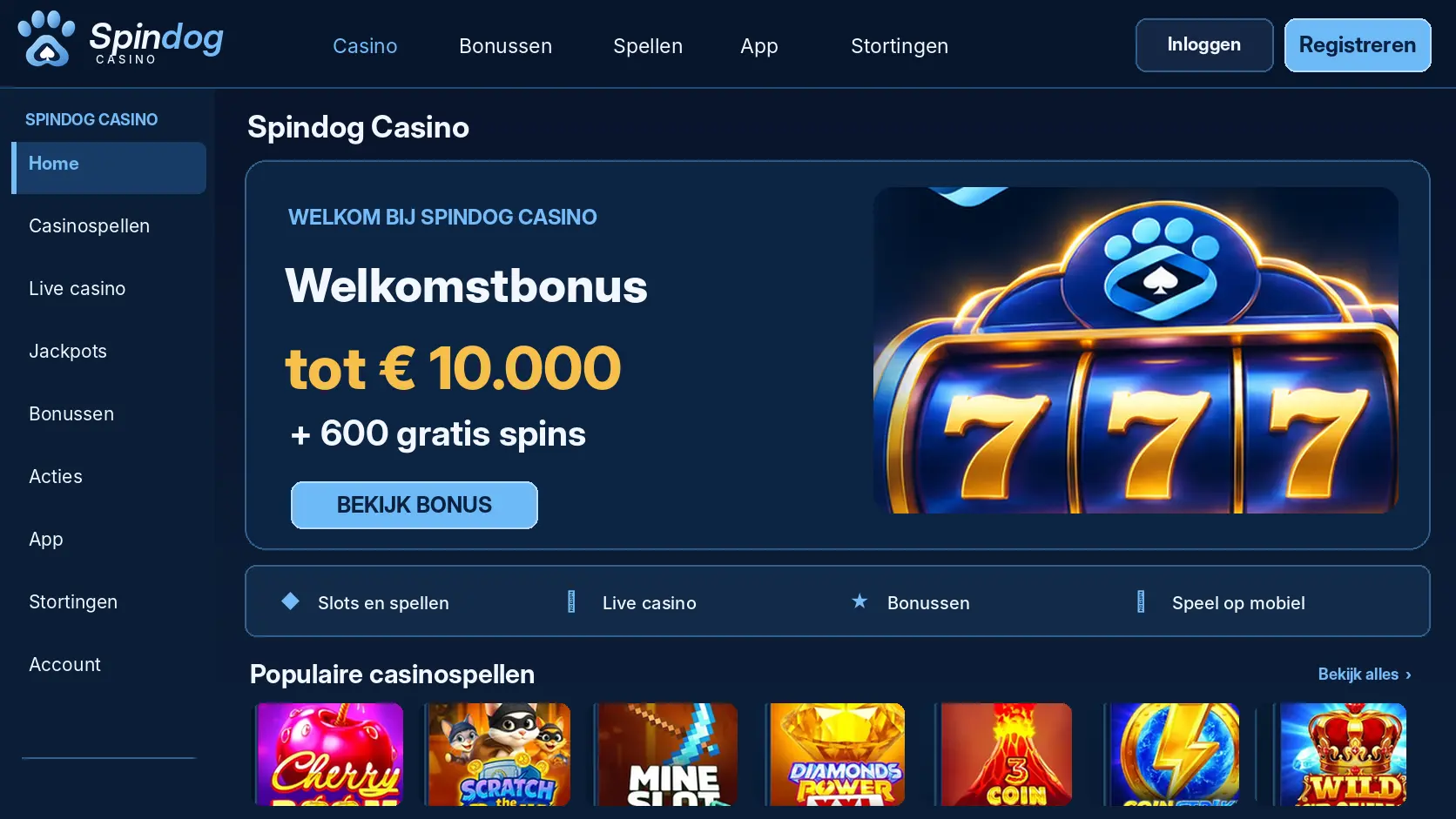
With a mobile browser, you can open our page without first installing a separate casino app. Log in to view your own account information and use the navigation to go to the desired section.
These practical options help you open our page on your phone and use your device during a mobile session.
- No separate installation — You can open our page in a browser without first installing a separate casino app on your device.
- Quickly return to the page — With a shortcut on your home screen, you can open the saved browser page without entering the address again.
- Use your own device — On your phone, you can log in with your own details and log out afterwards to end your session.
- Choose your own connection — You can switch between Wi-Fi and mobile data when you want to check whether a connection problem is related to your network.
- Adjust the screen — By rotating your device or adjusting browser zoom, you can make text and controls easier to read.
Opening Spindog on your phone
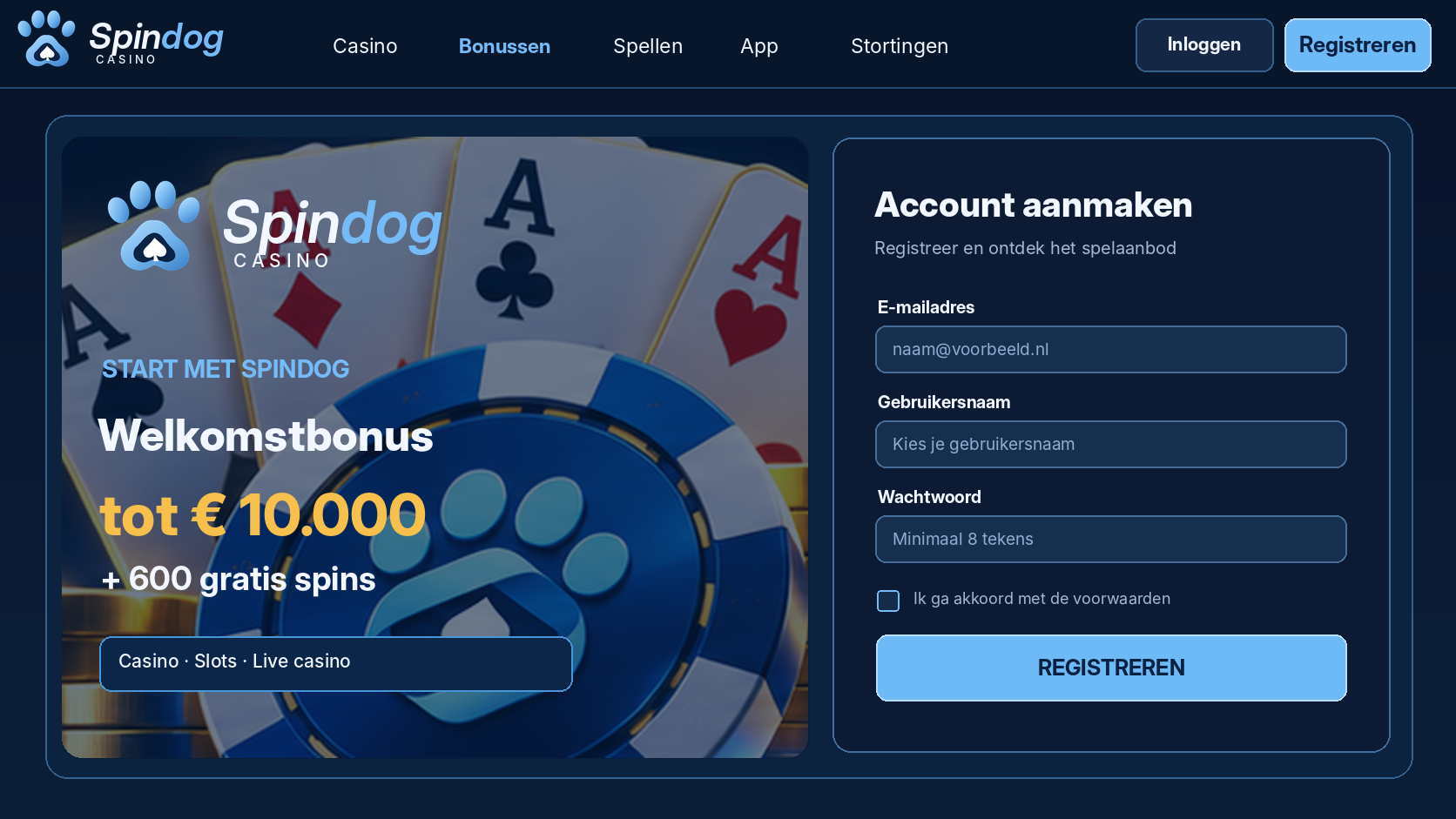
Use the browser on your device and open our page through an address that you trust. Before logging in, check that the connection is secure and that you are on the intended page.
Follow these steps on iOS or Android to open our page and log in without assuming an unconfirmed app download.
- Open your browser — Start Safari on your iPhone or iPad, or Chrome on your Android device, and open our page through an address you trust.
- Look for app information — Check whether our page shows information about a separate app; we do not have confirmed information about an available download.
- Install only after confirmation — Only follow a displayed installation procedure if an app is actually offered; otherwise, you can continue using the browser page.
- Log in to your account — Open the login function, enter your own details and check after logging in that you have reached your account.
Via the browser, without a download
A browser page works without installing a separate casino app. Your browser may store temporary data; clear it through the browser settings if an old page does not load properly.
Add a Spindog icon to your home screen
A shortcut on your home screen opens the page again in your browser. The icon is not proof that a separate app has been installed and does not transfer your existing account.
Setting up Spindog on iPhone and iPad
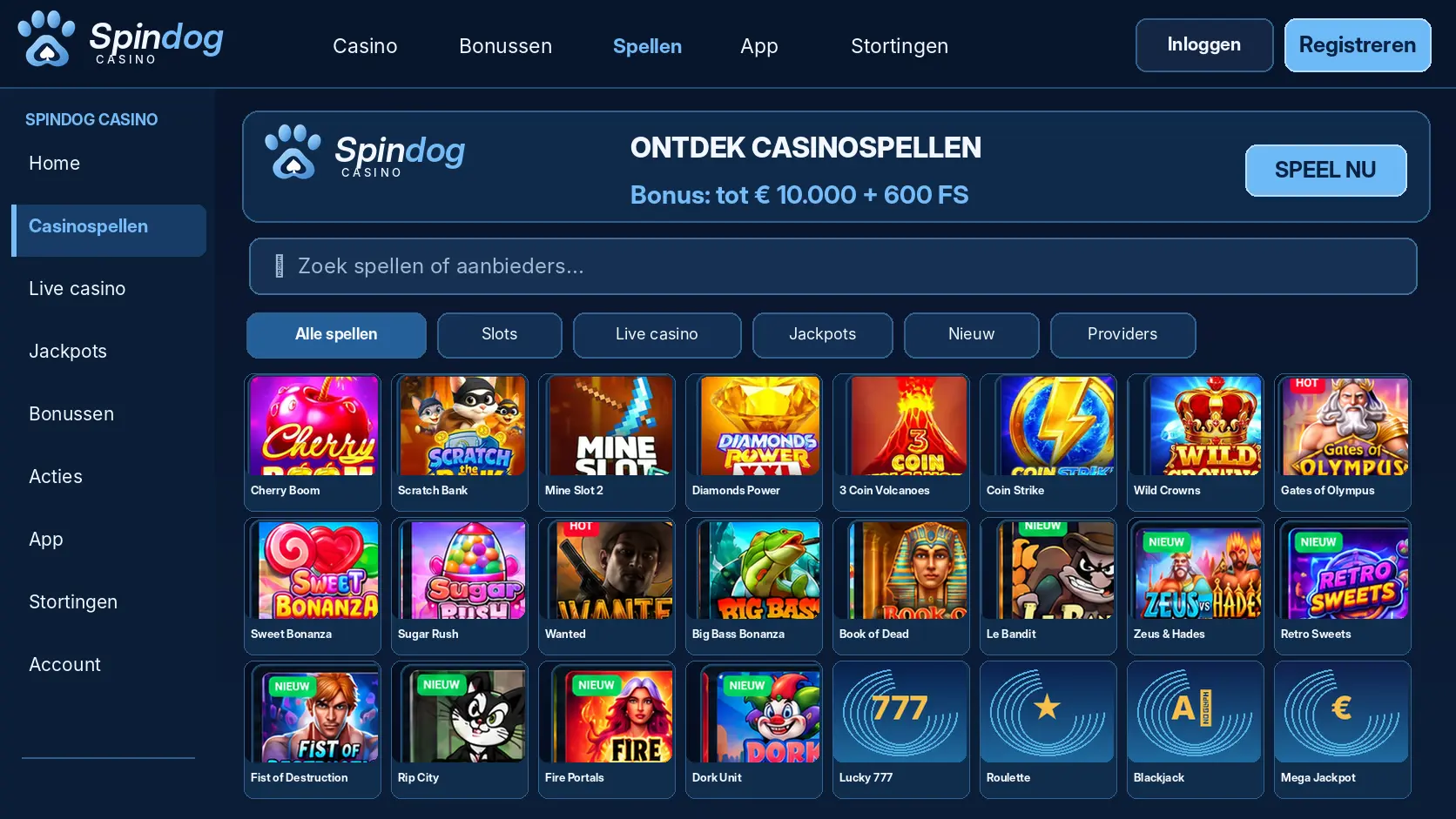
On an iPhone or iPad, you can use Safari to open our page. Keep your device unlocked while setting up a shortcut and do not close the browser until you have checked that the icon works.
Open Spindog in Safari
Open Safari, go to our page and wait until it has fully loaded. Then use Safari's share menu if you want to save the page to your home screen.
Add Spindog to your home screen
In the share menu, choose the option to add the page to your home screen. Give the shortcut a recognisable name and tap the new icon to test whether the correct page opens.
Setting up Spindog on Android
On an Android phone or tablet, you can use Chrome to open our page. Browser menu names may differ by version; the shortcut remains a link to the browser page.
Open Spindog in Chrome
Start Chrome and open our page. Wait until the content is visible before opening the browser menu; this ensures that you save the intended page rather than an earlier page.
Add Spindog to your home screen
Open the Chrome menu and choose the option to add the page to your home screen. Confirm the name and then open the shortcut to check where it leads.
The mobile version of Spindog
On a small screen, it helps to open one section at a time and return to the menu when you are finished. Rotate your device if this makes text or controls easier to read.
On your phone, you can use the following sections directly; which functions you see can be checked on the relevant page in your account.
- Navigation — Use the menu to open the desired section and then return to the menu for another task.
- Games page — View the games page on your phone and use a search field, if shown, to find a game.
- Payment page — Open the payment page from your account to view the displayed payment options and your transaction details.
- Account details — Through your account, you can view your personal details without having to switch to another device.
- Document upload — When your account asks for a document, you can select a photo on your device through the displayed upload function.
Menu and navigation on a small screen
Use the menu to move between your account, games and payment page. If a button is outside the visible area, first scroll within the page and check whether your browser is zoomed in too far.
Search for games and save favourites
Use a search field if one appears on the games page and enter a recognisable game name. If you see a favourites function, you can use it to save a game so that you can find it again later.
Playing slots on mobile
Open a slot from the games page and wait until the game has fully loaded. Read the stake on the screen before starting a spin; on a small screen, a tap can otherwise easily hit the wrong button.
Live tables on your smartphone
At a live table, a stable connection is important because video and game actions are transmitted over the internet. Check your stake before confirming and leave the table if the video continues to lag.
Fast games on the go
With games that have short rounds, it helps to decide in advance how much time and money you want to spend. Stop when you reach that limit, even if a new round is immediately available.
Sports betting on your phone
If you create a sports bet, read the selection, stake and displayed terms on your bet slip before confirming. A confirmed bet may have consequences that cannot be undone simply by closing the browser.
Using bonuses on mobile
If your account shows a bonus, read the associated terms before activating or using it. Pay attention to any wagering requirements and restrictions so that you understand what effect the bonus has on your balance.
Depositing and withdrawing via your phone
Open the payment page from your account to see which actions and payment options are shown for you. Check the amount and destination before confirming a transaction.
Quick deposits with card or e-wallet
If a card or e-wallet is offered on your payment page, select the desired option and follow the payment steps on the screen. Only confirm after checking the amount.
Deposit crypto from your wallet app
If your payment page offers a crypto deposit, compare the displayed receiving address and network with the information in your wallet. A transfer to the wrong address or network may be irreversible.
Managing your account on mobile
Open your account to view your personal details and transaction overview. Log out when you are finished on a shared device so that the next user cannot access your information through your open session.
Upload your documents with the camera
If your account requests a document, you can take a clear photo with your device camera and select it through the upload function. Make sure the requested information is readable before sending the file.
Safe play on your smartphone
Use a unique password and a screen lock on your device. Do not share your login details and do not save them in a browser that is also used by others.
Mobile data, Wi-Fi and battery
Video content can use more mobile data and battery than text-only pages. Close other apps if your device becomes slow and connect your charger before a nearly empty battery interrupts your session.
Problems with Spindog on mobile
When a problem occurs, start by determining whether only one page or your entire internet connection is not working. This prevents you from unnecessarily changing account details when the problem is actually with the connection.
The website does not open
First try another page to test your connection. If that also does not work, switch between Wi-Fi and mobile data; if only our page does not work, reload it or clear the temporary browser data.
A game freezes
Wait briefly and check your connection before reloading the page. After reopening, check your balance and any game status before placing another bet so that you do not perform an action twice.
You keep getting logged out
Check whether your browser allows cookies and whether you are repeatedly closing a private session. Then log in again and use your own device; do not save your password on a shared phone.